Blog
Simple, Secure: Connect Domain Email to Gmail (SSL Ports)
Jan
“`html
Connect domain email to Gmail (new setup + password updates)
Want to connect domain email to Gmail so your business emails (likeinfo@yourdomain.com.au) show up inside your Gmail inbox? This guide covers the secure
settings you need: POP3 995 SSL for receiving and SMTP 465 SSL for sending.
Plus, if you ever change your mailbox password, you’ll learn exactly how to update Gmail so sending
and receiving work again.
What you need before you start
To connect domain email to Gmail, you’ll need:
- Your email address (e.g.
info@yourdomain.com.au) - Your mailbox password (set in your hosting/email panel)
- Your mail server name
Mail server name (try these in order)
- Preferred:
mail.yourdomain.com.au - If that fails: use your server hostname (ask us for it)
Why this matters: sometimes the mail. record (or its SSL certificate) isn’t ready. In
that case, the server hostname usually connects straight away.
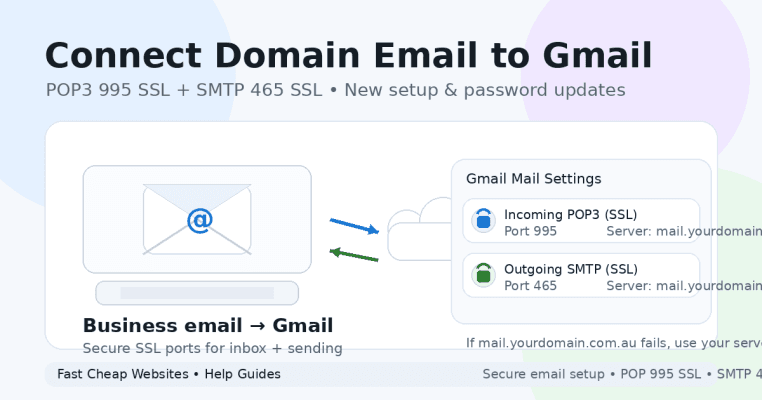
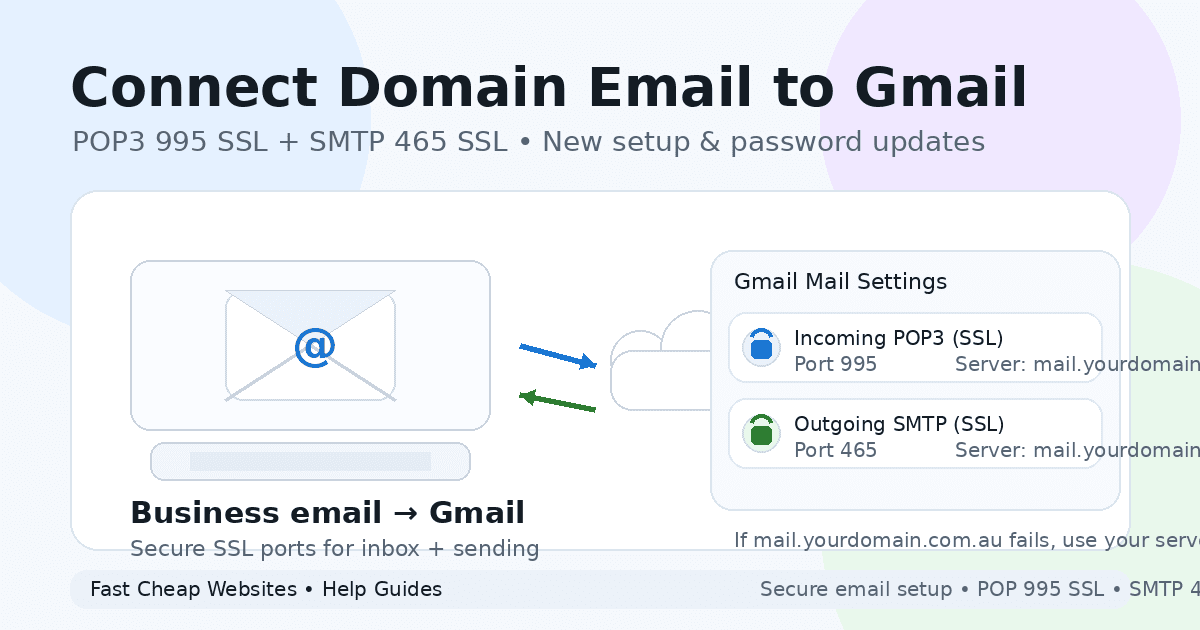
Secure Gmail settings (SSL ports)
Use these secure settings to connect domain email to Gmail:
Incoming (POP3)
- Server:
mail.yourdomain.com.au(or server hostname if needed) - Port: 995
- Security: SSL
- Username: full email address
Outgoing (SMTP)
- Server:
mail.yourdomain.com.au(or server hostname if needed) - Port: 465
- Security: SSL
- Username: full email address
How to connect domain email to Gmail (NEW connection)
Step 1: Add the email to Gmail (Incoming POP3 995 SSL)
- Log into Gmail on a computer.
- Click ⚙️ Settings → See all settings
- Open Accounts and Import
- Under Check mail from other accounts, click Add a mail account
- Enter your email (e.g.
info@yourdomain.com.au) → Next - Choose Import emails from my other account (POP3) → Next
- Enter:
- Username: full email address
- Password: mailbox password
- POP Server:
mail.yourdomain.com.au- If it fails: use your server hostname (ask us for it)
- Port: 995
- Tick ✅ Always use a secure connection (SSL)
- Optional, but recommended:
- ✅ Leave a copy of retrieved messages on the server
- ✅ Label incoming messages
- Click Add Account
Next, Gmail may take a few minutes to start fetching emails. That’s normal.
Step 2: Set up sending (Outgoing SMTP 465 SSL)
- Go to Settings → Accounts and Import
- Under Send mail as, click Add another email address
- Enter your name + email → Next Step
- Add the SMTP details:
- SMTP Server:
mail.yourdomain.com.au- If it fails: use your server hostname (ask us for it)
- Port: 465
- Username: full email address
- Password: mailbox password
- Select ✅ SSL
- SMTP Server:
- Click Add Account
- Enter the verification code that’s sent to the mailbox (it may take a few minutes to arrive).
Step 3: Set the default “From” address (optional)
To keep things professional:
- Under Send mail as, click Make default next to your domain email.
- Under When replying, choose
Reply from the same address the message was sent to.
How to update the password (existing Gmail connection)
If you change your mailbox password in your hosting/email panel, you must update Gmail in
two places. Otherwise, one side will fail.
- Incoming POP3 (995 SSL) controls receiving
- Outgoing SMTP (465 SSL) controls sending
Step 1: Update Incoming POP3 password (995 SSL)
- Gmail → Settings → See all settings
- Go to Accounts and Import
- Under Check mail from other accounts, find your email address
If you see “edit info”:
- Update the password
- Confirm:
- POP Server:
mail.yourdomain.com.au(or server hostname) - Port: 995
- ✅ SSL enabled
- POP Server:
- Save
If you don’t see “edit info” (common):
- Click delete next to the email address
- Then re-add it using POP 995 + SSL
- Use
mail.yourdomain.com.aufirst - If it fails: use your server hostname (ask us for it)
Step 2: Update Outgoing SMTP password (465 SSL)
- Gmail → Settings → Accounts and Import
- Under Send mail as, find your address
- Click edit info
- Update:
- SMTP Server:
mail.yourdomain.com.au(or server hostname) - Port: 465
- ✅ SSL selected
- Password: new mailbox password
- SMTP Server:
- Save
If sending still fails, remove that “Send mail as” address and add it again using
SMTP 465 SSL.
Troubleshooting (quick fixes)
Gmail says “Authentication failed”
First, retype the password carefully. Then confirm the username is the
full email address. Finally, update both POP and SMTP passwords.
“mail.yourdomain.com.au” doesn’t work
No worries — use your server hostname (ask us for it). This usually fixes it straight away.
Emails send but don’t arrive (or vice versa)
In most cases, only one side was updated. So, double-check both:
- POP 995 SSL for incoming
- SMTP 465 SSL for outgoing
Need help? Fast Cheap Websites can do it for you
If you want us to connect domain email to Gmail for you (or fix sending/receiving issues), we can
set it up correctly, confirm SSL ports, and provide the correct server hostname if needed.
Internal links (add your real page URLs)
- Contact us:
/contact/ - Email hosting:
/email-hosting/ - Help guides:
/help/(or your blog category)
External links (trusted Google resources)
- POP setup help: https://support.google.com/mail/answer/21289
- Send mail as help: https://support.google.com/mail/answer/22370
If you want, paste your actual internal page URLs (your real slugs), and I’ll plug them into the
“internal links” section so it’s ready to publish exactly as-is.
“`